Connect WhatsApp to LineNow so your team can keep supplier conversations and order information together. You will sign in with Facebook, connect a business phone number, add a payment method in Meta, and choose which suppliers use WhatsApp.
LineNow handles your message templates. We create and manage the WhatsApp templates used by the integration. You do not need to write or submit templates yourself. Meta must still approve a template before LineNow can use it.
Before you start
- Access to your business in LineNow. Open the business you want to connect.
- A Facebook account with access to the correct Meta business portfolio. Use an account that can manage its WhatsApp assets. If someone else manages your business in Meta, ask them to help with setup.
- A business phone number. You can use a virtual number offered during setup, when available, or an eligible business number you control.
- A payment method for WhatsApp messaging. You will add this to the connected WhatsApp Business account in Meta.
- Your supplier’s WhatsApp number. This is the recipient’s number, separate from the business number you connect as your sender.
If you already use the number in WhatsApp, WhatsApp Business, or another provider’s integration, contact LineNow support before moving it. The available connection path depends on the existing setup. Do not delete an account or disconnect a working integration just to get past a setup prompt.
1. Start in LineNow and sign in with Facebook
- Open Home in LineNow and find External Supplier Communication under Manage Your Business.
- Click the WhatsApp icon to open Meta’s Facebook login and WhatsApp setup window.
- Sign in to the Facebook account that manages your business. If you are already signed in, Meta may take you straight to the setup introduction. Switch accounts first if the wrong Facebook account is selected.
Confirm that you are connecting to LineNow
The introduction should name linenow.co. Review Meta’s terms and click Continue to begin.
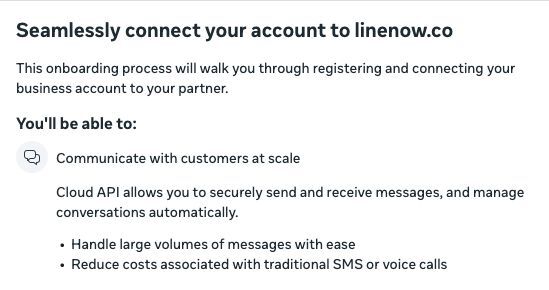
Meta’s setup introduction for the LineNow connection.
Choose your business portfolio and WhatsApp account
On Select the business assets to share with LineNow, choose your Business portfolio and the WhatsApp Business account you want to connect. Use existing assets where available; create new ones only if your business does not already have them. Complete any business details and display-name fields Meta requests.
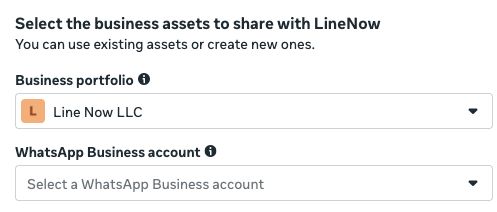
Select your own business portfolio and WhatsApp Business account. The business shown here is an example.
The screen order can vary. Meta may ask you to choose a phone number before showing the business-account selectors. If you see Add your WhatsApp phone number first, follow step 2 below, then return to the business selection when prompted.
Keep the LineNow tab open until setup is complete. If the login window does not appear, allow pop-ups for linenow.co and try again.
2. Connect a virtual or business phone number
On Add your WhatsApp phone number, choose how your business will be identified when sending messages. This is your business’s sender number, not your supplier’s number.
Option A: Use a virtual number offered by Meta
If it is available, select Use a display name with a virtual number instead from the Phone number dropdown, then continue with Next and complete the remaining business details.
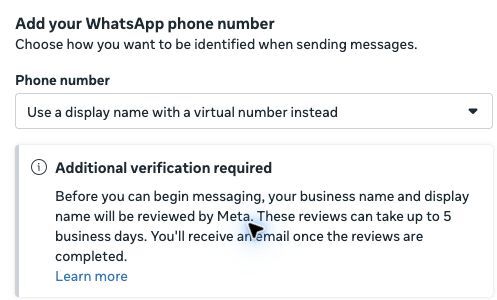
Meta’s virtual-number option includes an additional business-name and display-name review.
Allow time for Meta’s review. The setup screen currently says that business-name and display-name reviews can take up to 5 business days, with an email when they are complete. Follow the status and instructions shown for your account before messaging. This review is separate from message template approval in step 6. Learn more about Meta’s virtual-number option.
Option B: Use a business number you own
Select Enter a new phone number. Choose the correct country code and enter the business number you control.
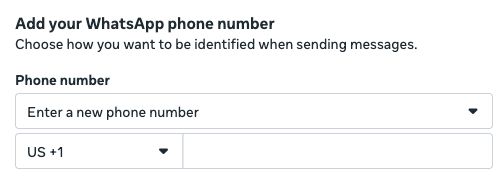
Choose the country code, then enter your own eligible business number.
Follow Meta’s verification instructions, including entering the code received by SMS or voice call when requested. If you use a third-party virtual number, confirm that it can receive the verification method Meta offers and is eligible for registration. If Meta asks you to wait before requesting another code, follow that wait time.
If your number is already registered, Meta may list it in the dropdown. Select only the number and business account you intend to connect. Contact LineNow support before moving a number that is already used in WhatsApp or another provider’s integration.
Finish the connection
Complete the remaining business selection, details, and permission prompts until Meta confirms that your account is connected to linenow.co. Keep a record of the number you connected or were assigned. A successful connection does not by itself confirm that billing, any required business review, and message templates are ready.

To check the number later, open WhatsApp Manager → Phone numbers. Select the WhatsApp Business account you connected and review the number’s status, display name, and quality rating.
3. Add a payment method in Meta
On the connection confirmation screen, click Add payment method. If you have already closed that screen, use Meta Billing & payments:

- Select the correct business portfolio.
- Open Accounts → WhatsApp Business accounts.
- Select the same WhatsApp Business account used in the LineNow connection.
- Under Payment methods, choose Add payment method and complete Meta’s billing prompts.
- Confirm that a usable payment method is listed for that WhatsApp account. Complete any verification Meta requests, then finish the setup and return to LineNow.
Choose the WhatsApp account carefully. A card on a Facebook ad account or a different WhatsApp account does not confirm that billing is configured for this integration.
Meta’s WhatsApp messaging charges are separate from your LineNow subscription. Rates depend on the recipient’s market and message category. See Meta’s current WhatsApp Business Platform pricing.
4. Confirm WhatsApp is connected in LineNow
Return to LineNow Home and check External Supplier Communication. Refresh the page once if the setup has just finished.
- The WhatsApp icon should show a green check.
- The connected business number should appear under Available Emails & Phones.
The green check marks the connected WhatsApp integration. The connected control may be labelled “Reconnect WhatsApp Business”; that label alone does not mean the connection failed.
If the number is missing or incorrect, check that you selected the same business and WhatsApp account in both systems before reconnecting.
5. Add a supplier who uses WhatsApp
- Open Suppliers in LineNow.
- Choose Add Supplier → Add one supplier manually. For an existing supplier you manage, choose Edit.
- Enter the supplier’s business name and any other relevant details.
- Under How do you order from this supplier?, select I order through WhatsApp.
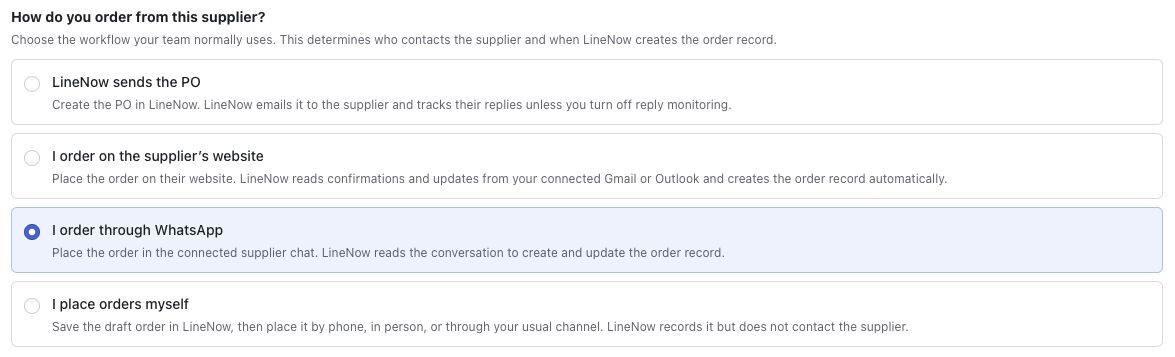
- Enter the supplier’s number in Supplier WhatsApp Number, including + and the country code. Use the number they actually use on WhatsApp.
- If the supplier uses more than one number, add the others under Additional WhatsApp Numbers → Add Phone.
- Review the remaining settings and click Add Supplier, or save the changes to the existing supplier.

Enter the supplier’s recipient number here, not your connected business sender number. Use the full-size links to see the screenshot details.
With this workflow, your team places orders in the connected supplier chat and LineNow reads the conversation to create and update the order record. Choosing this workflow does not send a purchase order by email. Review the conversation in Communication and the resulting records in Purchase Orders.
Make sure the supplier has agreed to receive your business’s WhatsApp messages. Only conversations available to the connected business account can be used by the integration; unrelated personal chats are not connected.
6. Allow time for message template approval
LineNow creates and manages the templates for you. You do not need to build templates in WhatsApp Manager. Meta reviews them, and any outgoing message that requires a template must wait until the relevant template is approved and available.
You can check progress in WhatsApp Manager → Manage templates. Select the connected WhatsApp Business account and look at the template’s Status.
- In review or pending: Meta has not finished reviewing it. Approval is not immediate and timing can vary.
- Approved or active: the template has passed review. The connected number, billing, and account status must also allow messaging.
- Rejected, paused, or disabled: contact LineNow support with the template name and status so we can help resolve it. You do not need to create a replacement yourself.
Ready-to-send check: confirm the correct number is connected, the WhatsApp account has a valid payment method, the supplier’s recipient number is correct, and the required template is approved. A green check in LineNow confirms the connection; it does not replace these checks.
Troubleshooting
The Facebook window does not open, or the wrong business appears
Allow pop-ups for linenow.co. Sign in to the Facebook account with access to the intended business portfolio and WhatsApp account. Review access in Meta Business Settings. Avoid creating another business account simply because the expected one is missing.
I cannot verify or connect my number
Check the country code and whether the number can receive the verification method offered by Meta. If you are using your own number, check whether it is already registered with WhatsApp or another provider. Review Phone numbers in WhatsApp Manager and contact LineNow support with the exact error before moving an existing number. If Meta asks you to wait before requesting another code, follow that wait time.
WhatsApp is connected, but messages are not sending
Check billing for the connected WhatsApp account, then the template status and supplier’s number. Also review the number’s status and any restrictions in Meta Business Support Home.
I added a card, but Meta still asks for payment
In Billing & payments, switch to WhatsApp Business accounts and open the exact account connected to LineNow. Confirm the card is attached there and complete any outstanding verification. Resolve payment errors shown by Meta before retrying.
Supplier messages are not appearing in LineNow
Confirm that the conversation uses your connected business number and that the supplier’s number is saved under the correct supplier, including its country code. Add any alternate supplier numbers. Then check Communication. If the conversation is still missing, contact support with the approximate message time and the error or missing result you see.
Useful Meta links
These links require your own Facebook login where applicable. Always select the business portfolio and WhatsApp Business account connected to LineNow.
- Business Settings — review business access and permissions.
- Phone numbers — check connection status, display name, and quality rating.
- Billing & payments — select WhatsApp Business accounts to manage payment methods.
- Manage templates — check approval and availability; LineNow handles template creation.
- Business Support Home — review restrictions and follow Meta’s review or support instructions.
- WhatsApp Business Platform pricing — check current Meta messaging rates.
Still need help? Contact LineNow support with the step you reached, the exact error, and a screenshot of the relevant status. Leave passwords, verification codes, and card details out of the screenshot.